
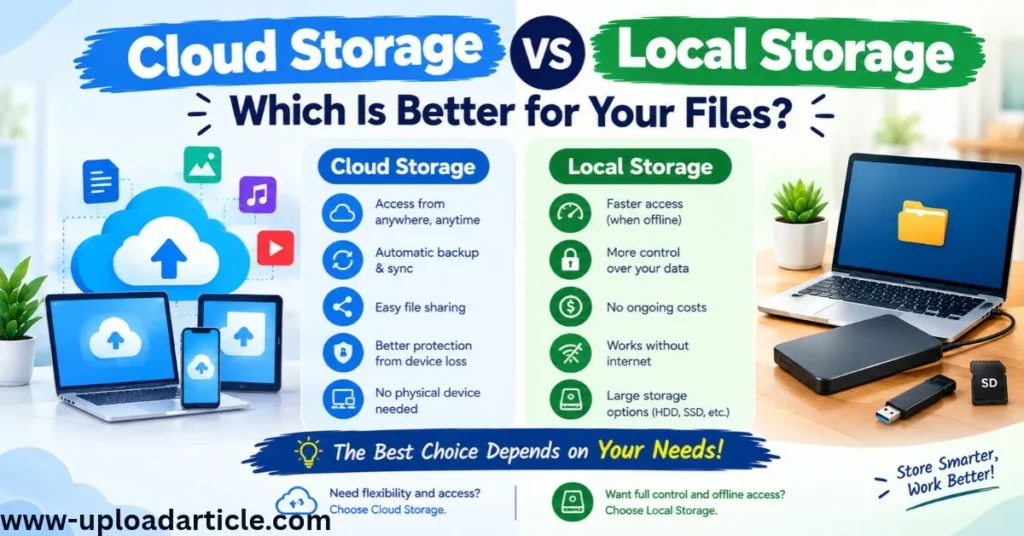
Choosing where to store your files is an important part of managing digital information. Photos, videos, documents, website backups, and business records can occupy considerable storage space. Two common options are cloud storage and local storage.
Cloud storage keeps files on remote servers that you access through the internet. Local storage keeps files on physical devices such as a computer’s internal drive, an external hard drive, a USB flash drive, or a network-attached storage device.
Both approaches have advantages and limitations. Cloud storage offers convenient access and can simplify sharing, while local storage provides direct control over physical devices and can work without an internet connection.
In this guide, you will learn how Cloud Storage vs Local Storage, which factors to consider, and how to choose the right solution for your needs.
What Is Cloud Storage?
Cloud storage is a service that stores your files on remote infrastructure managed by a provider. You typically access your files through a website, desktop application, or mobile app.
Examples of cloud storage services include Google Drive, Microsoft OneDrive, Dropbox, and iCloud Drive. Features, free allowances, subscription prices, and device support vary by service and can change over time.
Cloud storage can be useful for people who work across multiple devices or need to share documents with others.
Advantages of Cloud Storage““““““““““““““
Access from different devices: Depending on the service and your settings, you can access files from a computer, tablet, or smartphone.
Easy sharing: Many services let you share files or folders through links and control whether recipients can view or edit them.
Synchronization: Changes made on one connected device can synchronize to other devices. Synchronization settings and timing depend on the service and connection.
Scalability: You can often purchase additional storage without buying another physical drive.
Provider-managed infrastructure: The provider manages the underlying storage systems, although you remain responsible for many account, sharing, and data-management decisions.
Disadvantages of Cloud Storage
Internet dependency: Uploading, downloading, and synchronizing files generally require a connection. Some services support offline access to selected files.
Recurring costs: Large storage allowances may require monthly or annual subscriptions.
Privacy considerations: Files are stored with a third-party provider. You should understand its privacy terms, account security options, and data-handling practices.
Account access risks: Losing access to an account can make files difficult to retrieve until access is restored.
Upload limitations: Large files may take a long time to upload, especially with a slow connection or limited data allowance.
What Is Local Storage?
Local storage means keeping files on physical storage devices that you control directly or access through your own network.
Common examples include:
- Internal SSDs and hard drives
- External SSDs and hard drives
- USB flash drives
- Memory cards
- Network-attached storage systems
Local storage can be useful for large media libraries, offline work, local backups, and files that require fast access without relying on an internet connection.
Advantages of Local Storage
Offline access: Files stored on an available local device can usually be accessed without an internet connection.
Direct control: You decide where files are stored and how physical devices are managed.
No mandatory monthly cloud subscription: Once you purchase a storage device, there may be no recurring storage fee, although devices can eventually need replacement.
Fast transfers: Modern SSDs can provide fast file access and transfers, particularly when connected through a suitable interface.
Useful for large files: Video editors, photographers, and other users with large files may benefit from storing working files locally.
Disadvantages of Local Storage
Physical damage: A drive can fail or be damaged by drops, heat, water, or other hazards.
Theft or loss: A portable device can be lost or stolen.
Manual maintenance: You may need to organize files, check storage health, and create backups yourself.
Limited capacity: A device has a finite storage capacity. Adding space may require purchasing additional hardware.
Sharing challenges: Sharing files between devices or with other people may require extra steps or a local network.
Cloud Storage vs Local Storage: Key Differences
| Feature | Cloud Storage | Local Storage |
|---|---|---|
| Access | Usually through the internet or supported offline features | Direct access to the device or network |
| Internet requirement | Generally needed for online access and synchronization | Not usually needed for locally available files |
| Upfront cost | Often low or free for limited storage | Usually requires buying hardware |
| Ongoing cost | May require a subscription | Usually no storage subscription, but hardware needs replacement |
| File sharing | Often built into the service | May require manual transfers or network configuration |
| Physical control | Infrastructure is managed by the provider | You manage the storage device |
| Main risks | Account compromise, service interruption, sharing mistakes | Device failure, theft, physical damage |
| Capacity | Often expandable through a plan | Limited by installed or attached hardware |
| Best use | Collaboration and access across devices | Offline work and direct local access |
Neither option is automatically better for every user. The right choice depends on your budget, file size, access needs, privacy requirements, and backup strategy.
Which Storage Option Is More Secure?
Security depends on how the storage system is configured and used.
Cloud providers may offer encryption, account alerts, multifactor authentication, and recovery options. However, weak passwords, compromised accounts, and incorrectly configured sharing permissions can expose files.
Local storage can reduce dependence on an online account, but it is still vulnerable to theft, hardware failure, malware, and unauthorized physical access.
To improve security:
- Use a strong, unique password for each important account.
- Enable multifactor authentication where available.
- Keep your operating system and storage applications updated.
- Encrypt sensitive devices or files when appropriate.
- Review shared links and access permissions regularly.
- Keep important backups separate from your everyday working files.
- Store recovery information safely.
For highly sensitive business or personal information, consider your legal obligations and the provider’s data-handling terms before selecting a solution.
Is Cloud Storage a Backup?
Not necessarily.
Cloud storage and synchronization can help protect against some types of data loss, but synchronization is not always the same as an independent backup. If you accidentally delete a file, overwrite it, or synchronize unwanted changes, those changes may affect other connected devices.
Some services offer file version history and deleted-file recovery, but retention periods and recovery options vary.
A stronger backup strategy keeps additional copies that can be recovered independently of your everyday storage system.
For example, you might keep working documents on your computer, synchronize important files to a cloud service, and maintain a separate backup on an external drive.
Check that your backups are actually restorable rather than assuming that a successful copy operation guarantees recovery.
What Is the 3-2-1 Backup Rule?
The 3-2-1 backup rule is a commonly used approach to reducing data-loss risk:
- 3 copies of your data: Keep the original and two additional copies.
- 2 types of storage: Use two different storage media or systems.
- 1 off-site copy: Keep at least one copy in a separate location.
For example, you might keep the original files on your computer, a backup on an external drive, and another backup in a secure cloud service.
The rule is a useful starting point, not a complete security plan. Sensitive files may require encryption, access controls, version history, and periodic recovery tests.
Which Option Is Best for Students?
Students often need to access assignments from different devices, submit files online, and collaborate on group projects.
Cloud storage may be convenient for documents that need to be accessed from campus, home, or a mobile device. Shared folders can also make group work easier.
Local storage is helpful when working without reliable internet access or storing large video and design projects.
A practical combination is to keep active assignments in a cloud service and maintain a separate copy of important work on a computer or external drive.
Students should also check their institution’s rules before storing confidential academic or research information in a personal account.
Which Option Is Best for Businesses?
Businesses should consider more than storage capacity and price. Important factors include access control, collaboration, recovery requirements, compliance, and continuity of operations.
Cloud storage may help distributed teams collaborate and access shared documents. However, administrators need to manage user permissions, departing employees’ access, sharing settings, and account security.
Local storage or a business-managed network storage system may be appropriate for particular workflows, large datasets, or environments with specialized requirements. These systems also require maintenance, physical security, and reliable backups.
Many businesses use a combination of cloud services and local systems. The best arrangement depends on the sensitivity of the data and how quickly the organization needs to recover after an incident.
How to Choose the Right Storage Solution
Ask yourself these questions before making a decision.
How Much Storage Do You Need?
Estimate the amount of space required for documents, photos, videos, applications, and backups. Consider how quickly that amount is likely to grow.
How Often Do You Access Files on Different Devices?
If you regularly move between a laptop, phone, and desktop computer, cloud synchronization may be convenient. If you mainly work on one computer, local storage may be sufficient for everyday use.
Do You Need to Work Offline?
If you frequently work without reliable internet access, local storage becomes more important. Cloud services with offline functionality may help, but files usually need to be made available offline in advance.
What Is Your Budget?
Compare the total cost over time. Include cloud subscriptions, hardware purchases, replacement drives, backup services, and any costs associated with maintaining a local system.
How Important Is Recovery?
Think about what would happen if your device were lost or your account became inaccessible. Choose a backup method that lets you restore important files within an acceptable time.
How Sensitive Are Your Files?
For confidential information, evaluate encryption, account controls, access logs where available, and applicable privacy requirements. A storage location alone does not guarantee security.
Common Storage Mistakes to Avoid
Keeping only one copy: A single device or account creates a single point of failure.
Assuming synchronization is a complete backup: Synchronization may reproduce deletions or unwanted changes.
Ignoring account security: An exposed account can put stored files at risk.
Using an old external drive without checking it: Drives can fail without much warning. Check backups and replace unreliable hardware.
Sharing files publicly by accident: Review link settings and remove access that is no longer needed.
Never testing recovery: Periodically restore a sample of backed-up files to confirm that the process works.
Conclusion
Cloud storage and local storage solve related but different problems. Cloud services make sharing and cross-device access convenient, while local devices provide direct access and can support offline work.
For many people, the most practical approach is to use cloud storage for everyday access and collaboration, local storage for working files, and separate backups for recovery.
Evaluate your storage needs, security requirements, budget, and recovery options before deciding. Most importantly, keep more than one reliable copy of files you cannot afford to lose.
FAQs
Is cloud storage better than local storage?
Neither is universally better. Cloud storage is convenient for sharing and cross-device access, while local storage offers direct control and offline access. A combination often works well.
Is local storage cheaper than cloud storage?
Local storage may be less expensive over time for some needs, but you must account for hardware replacement, backup devices, and maintenance. Cloud subscriptions may be more convenient when storage needs change frequently.
Can cloud storage files be accessed offline?
Some services allow you to mark files for offline use. You generally need to download or synchronize those files beforehand, and offline features differ by provider and device.
Can an external hard drive replace cloud storage?
An external drive can store files and backups, but it does not automatically provide online synchronization or convenient remote sharing. It is often most useful as part of a broader storage plan.
What is the safest way to store important files?
Use strong account security, appropriate encryption, independent backups, and regular recovery tests. For particularly important data, maintain copies in separate locations and avoid relying on a single device or service.