
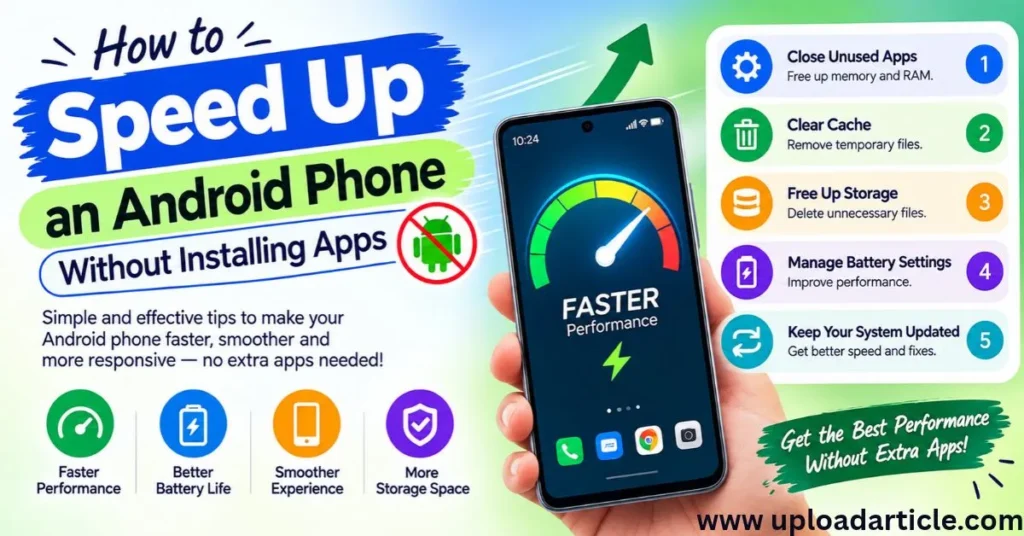
Is your Android phone taking too long to open applications, freezing during everyday tasks, or responding slowly when you tap the screen? A phone can become slower for several reasons, including limited storage, demanding applications, outdated software, or an aging battery.
The good news is that you can try several troubleshooting steps without installing additional applications. Android already includes tools for managing storage, checking battery usage, updating software, and controlling application permissions.
This guide explains How to Speed Up an Android Phone safely, reduce unnecessary activity, and identify when a more serious hardware problem may be responsible.
Menu names and available settings vary by Android version and manufacturer, so the instructions may look slightly different on Samsung, Google Pixel, Xiaomi, Oppo, Vivo, and other devices.
Restart Your Android Phone
Restarting your phone is one of the simplest troubleshooting steps.
A restart can clear temporary system states and resolve certain software glitches that make a device feel unresponsive. It will not fix every performance problem, but it is a useful first step.
To restart your phone:
- Open the power menu using your phone’s power button or the appropriate button combination.
- Select Restart if available.
- Wait for the phone to shut down and start again.
- Open your usual applications and check whether performance has improved.
If your phone is frozen, consult the manufacturer’s instructions for a forced restart. The button combination differs between devices.
Free Up Internal Storage
Low storage space can interfere with updates, downloads, and normal phone operations. It is worth checking how much space is available if your phone has become slow.
To review storage:
- Open Settings.
- Find Storage, Battery and device care, or a similarly named menu.
- Review which categories are using the most space.
- Remove files you no longer need after checking their contents.
Consider deleting old downloads, duplicate files, unwanted videos, and unused offline media.
You can also review large files in your phone’s built-in file manager.
Do Not Delete Files You May Need
Avoid deleting unfamiliar folders or system files just to free up space. Before removing photographs, documents, or downloaded files, confirm that you have another copy if you want to keep them.
Cloud backups and synced files should also be checked carefully. Deleting an item from a synchronized service may remove it from other connected devices.
Uninstall Applications You No Longer Use
Unused applications can consume storage and, depending on their configuration, use battery or perform background activity.
Review your installed applications and remove ones you no longer need.
To do this:
- Open Settings.
- Select Apps or Applications.
- Review the installed application list.
- Choose an application you recognize and no longer use.
- Select Uninstall if the option is available.
Some preinstalled applications cannot be uninstalled. Certain devices may allow selected applications to be disabled instead.
Do not remove applications simply because you do not recognize their names. System components and manufacturer services may be necessary for your phone to work correctly.
Restrict Unnecessary Background Activity
Some applications continue performing tasks when you are not actively using them. Depending on the application, this may include synchronization, location access, notifications, or background processing.
Review the battery usage and background activity settings on your phone.
A typical process is:
- Open Settings.
- Go to Battery or Battery usage.
- Review which applications consume substantial power.
- Open the relevant application settings.
- Adjust background activity or battery usage options if appropriate.
Be careful when restricting messaging, email, navigation, or security applications. Aggressive restrictions may delay notifications or interfere with features you rely on.
Focus on applications that are unnecessary or using unexpectedly high resources.
Clear an Application’s Cache When Needed
Cached files allow applications to load certain information more quickly. Over time, some applications may accumulate substantial cached data.
If one application is unusually slow or behaving incorrectly, clearing its cache may help.
To try this:
- Open Settings.
- Select Apps.
- Choose the affected application.
- Open Storage or Storage and cache.
- Select Clear cache if the option is available.
Important: Clear cache is different from Clear storage or Clear data. Clearing an application’s data may remove its local settings, downloaded information, or login state. Do not choose that option unless you understand the consequences.
Clearing cache is not a routine requirement for every application, and it will not necessarily improve the overall speed of your phone.
Update Android and Your Applications
Software updates can include bug fixes, security improvements, and performance-related changes.
To check for an Android update:
- Open Settings.
- Find System update, Software update, or a similarly named option.
- Check for available updates.
- Follow the instructions if an update is available.
Also open your device’s official application store and review pending application updates.
Before a major system update, ensure you have sufficient battery charge, a reliable connection, and a backup of important information.
Not every update makes every device faster, but keeping supported software up to date can help resolve known problems and maintain security.
Reduce Unnecessary Animations
Animations make transitions look smoother, but some people prefer simpler effects on older or less powerful phones.
Android includes developer settings on many devices that allow you to adjust animation scales.
The process varies, but it commonly involves:
- Opening Settings and finding About phone.
- Locating the build number.
- Tapping the build number repeatedly until developer options are enabled, if your device requires this.
- Returning to Settings and opening Developer options.
- Finding Window animation scale, Transition animation scale, and Animator duration scale.
You can reduce these scales or set them to Off to make transitions appear faster.
Use caution: Developer options contain advanced settings. Change only the animation settings you understand, and avoid modifying unrelated options.
Reducing animations can make the interface feel more responsive, but it does not increase the phone’s actual processing power.
Check Battery and Performance Settings
Some phones offer power-saving or performance modes that change how the device uses resources.
Battery-saving modes can reduce background activity and processing in order to extend battery life. On some devices, this can make certain tasks feel slower.
Check your current battery mode if the phone suddenly seems less responsive. Compare the available settings and choose one appropriate for your needs.
Do not disable battery protection or other safety features just to increase speed. If the phone becomes unusually hot, allow it to cool down and avoid demanding tasks until its temperature returns to normal.
Remove Unnecessary Home Screen Widgets
Live widgets, animated wallpapers, and frequently updating home screen elements can consume some resources, depending on the device and widget.
If your phone has limited resources, consider removing widgets you rarely use and switching to a simpler wallpaper.
To remove a widget, press and hold it on the home screen and choose the available remove option. This normally removes the widget from the screen rather than uninstalling its application.
You do not need to remove every widget. Focus on elements that update frequently or provide little value.
Check Your Internet Connection
Sometimes a phone appears slow because websites or online applications are taking too long to respond.
This is different from the phone itself being slow.
If browser pages, videos, or cloud applications take a long time to load, try the following:
- Switch between Wi-Fi and mobile data.
- Move closer to your Wi-Fi router.
- Restart your router if the connection itself is having problems.
- Test more than one website or application.
- Check whether other devices experience the same issue.
If offline applications also respond slowly, the problem may be related to the phone’s resources rather than the internet connection.
Use a Lightweight Approach to Applications
Some applications require more memory or processing power than others. Older phones may struggle with demanding games, complex editing applications, or applications that perform many tasks simultaneously.
Where appropriate, consider using a lighter version of an application, its mobile website, or a simpler alternative from a trusted provider.
Close an application if it is frozen or malfunctioning, but do not assume that constantly closing every background application will improve performance. Android manages memory automatically, and repeatedly reopening applications can consume additional resources.
Check for Overheating
A phone may temporarily reduce performance when it becomes too hot.
Common causes include demanding games, extended video recording, charging in a hot environment, poor ventilation, or a malfunctioning application.
If the phone becomes unusually hot:
- Stop demanding tasks.
- Disconnect the charger if the device or manufacturer guidance indicates this is appropriate.
- Move the phone away from direct sunlight and heat sources.
- Let it cool naturally in a safe location.
- Check whether the problem returns during ordinary use.
Do not place a hot phone in a refrigerator or use ice to cool it rapidly. Sudden temperature changes and condensation can damage the device.
Persistent overheating, swelling, or battery damage requires professional attention.
Back Up Your Data Before a Factory Reset
If your phone remains extremely slow after reasonable troubleshooting, a factory reset may be an option. However, it should not be the first step.
A factory reset generally erases personal data and settings stored on the device. Before considering it:
- Back up important photographs and documents.
- Confirm that your contacts are synchronized or exported.
- Verify that you know the credentials needed to access your accounts.
- Check that important application data can be recovered.
- Follow the manufacturer’s official reset instructions.
After a reset, install only the applications you need and monitor performance before restoring everything.
A factory reset cannot repair failing hardware, a worn-out battery, or every possible software problem. If the phone continues to freeze or restart, seek help from an authorized service provider.
How to Tell Whether Your Phone Needs More Than Basic Troubleshooting
Consider professional support if:
- The phone repeatedly restarts without explanation.
- Applications continue crashing after updates and troubleshooting.
- The device overheats during ordinary use.
- The battery is swollen or visibly damaged.
- The screen becomes unresponsive regularly.
- Performance remains poor despite sufficient storage and a clean software setup.
If the device is old, its hardware may no longer meet the demands of newer applications. In that case, software adjustments may provide only limited improvement.
Conclusion
You can try several ways to speed up an Android phone without installing additional applications. Start by restarting the device, checking available storage, removing applications you no longer use, and reviewing background activity.
Next, check for software updates, adjust unnecessary animations if appropriate, and investigate overheating or network problems. Make changes carefully, particularly when handling application data and advanced settings.
There is no single setting that makes every Android phone faster. The most effective solution depends on the cause of the slowdown, your device model, and its current condition.
FAQs
Why is my Android phone slow even when storage is available?
Possible causes include demanding applications, background activity, software bugs, overheating, limited memory, or aging hardware. Check which symptoms occur and troubleshoot accordingly.
Does clearing cache make an Android phone faster?
It can help in some cases, particularly when an application has a problem. Clearing cache is not guaranteed to improve overall performance and is not necessary for every app.
Will restarting my phone delete my data?
A normal restart does not delete your personal files or applications. A factory reset is different and generally erases data stored on the device.
Should I install a phone-cleaning application?
You do not need to install one to try the steps in this guide. Be cautious with applications that promise unrealistic speed improvements or request unnecessary permissions.
Can an old Android phone become as fast as a new phone?
Basic troubleshooting may improve responsiveness, but software changes cannot fully overcome hardware limitations or a degraded battery.