
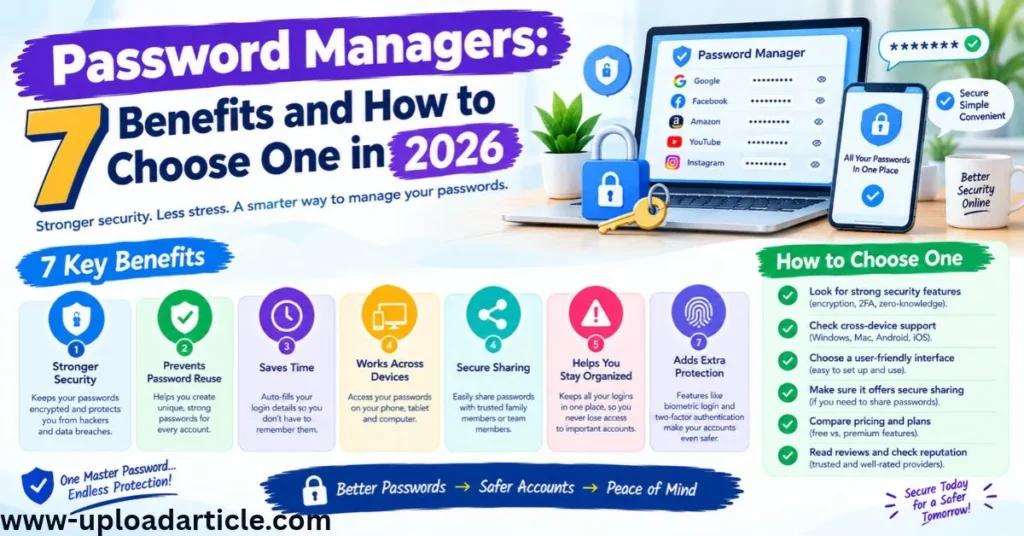
Most people use multiple online accounts every day. Email, social media, online banking, shopping websites, work platforms, and cloud services can all require separate login credentials. Remembering a unique, strong password for every account can quickly become difficult.
As a result, people sometimes reuse passwords or choose simple combinations that are easier to remember. This creates a security risk: if one website experiences a data breach, a reused password could put other accounts at risk too.
Password managers offer a practical way to manage login credentials without having to memorize every password individually.
In this guide, you will learn what password managers are, seven benefits they offer, how to choose a suitable tool, and the security practices that help protect your accounts in 2026.
What Is a Password Manager?
A password manager is an application or service that stores and organizes passwords and other sensitive login information in a protected vault.
Many password managers can generate strong passwords, autofill login forms, synchronize credentials across devices, and identify certain password-security problems.
Most use encryption to protect stored information. Depending on the product, the vault may be encrypted locally, in the cloud, or through a combination of methods. Some services use a zero-knowledge design intended to prevent the provider from accessing the contents of your vault.
However, security features vary between products. A password manager is not automatically safe simply because it uses encryption. Its implementation, account recovery system, software updates, and your own security habits all matter.
1. Create Strong and Unique Passwords
One of the biggest advantages of password managers is their ability to generate strong, unique passwords.
A strong password should be difficult to guess and should not be reused across important accounts. Password managers can create long, random combinations of letters, numbers, and symbols without requiring you to invent them yourself.
For example, instead of using a familiar word followed by a birth year, a password generator can produce a much less predictable password that is unique to a particular website.
This reduces the impact of password reuse. If one service suffers a breach, attackers cannot automatically use the same password to access every other account where you have registered.
Use the generator’s settings to create passwords that satisfy the website’s requirements. For accounts that support passkeys, consider using a passkey as an alternative to a traditional password.
2. Store Passwords in One Protected Vault
A password manager organizes credentials in one place, allowing you to retrieve them when needed.
Depending on the tool, you may be able to store:
- Website usernames and passwords
- Secure notes
- Wi-Fi credentials
- Recovery codes
- Payment-card information
- Other supported personal or business details
Keeping these details organized can be safer and more convenient than storing passwords in plain-text documents or unprotected notes.
The important distinction is that a password manager should protect the vault with appropriate security controls. Do not export your password collection into an unencrypted file and leave it on a shared computer.
Your vault is a high-value target, so secure it with a strong master password or the product’s supported authentication method.
3. Log In More Quickly Across Devices
Many password managers support browsers, desktop computers, and mobile devices. Depending on the service and plan, they may synchronize your saved credentials across your devices.
For example, you could save a login on your computer and access it later through an authorized mobile app.
Autofill features can reduce typing errors and make it easier to use unique passwords for different websites. Some tools also recognize website domains to help prevent credentials from being entered on an unrelated page.
However, autofill should not replace careful attention to the website address. Before entering sensitive information, check that you are using the genuine service and not a deceptive lookalike.
When using a shared computer, avoid leaving your password vault unlocked and make sure you sign out when finished.
4. Identify Weak or Reused Passwords
Some password managers include security dashboards that review saved credentials and highlight potential problems.
Depending on the service, these tools may identify:
- Weak passwords
- Passwords reused across multiple accounts
- Credentials associated with known data breaches
- Accounts that may need a password update
These features can help you prioritize security improvements.
Start with your email account, financial accounts, primary work accounts, and any service that can be used to reset other passwords.
Change compromised or reused passwords to unique credentials. If a service supports multifactor authentication, enable it as well.
Remember that a security dashboard is not a complete guarantee of safety. It may not detect every threat, and the results depend on the product’s capabilities and available data.
5. Support Multifactor Authentication
Multifactor authentication, often abbreviated as MFA, adds another verification step beyond a password.
Depending on the service, that second factor might be an authenticator app, a hardware security key, or another supported method.
A password manager may store or help manage certain authentication information, but you should understand the trade-offs before placing every security factor in the same vault.
For especially important accounts, consider using a separate authenticator or hardware security key. Hardware security keys and passkeys can offer strong protection against phishing when supported and configured correctly.
Keep recovery codes in a secure location. If you lose access to your primary authentication method, recovery options may be essential.
MFA does not eliminate every possible attack, but it can significantly improve account protection when implemented appropriately.
6. Share Credentials More Safely
Families, teams, and businesses sometimes need to share access to accounts.
Sending passwords through ordinary messages, email, or shared documents can expose credentials to unintended recipients or leave them accessible long after they are needed.
Some password managers provide secure sharing, shared vaults, role-based permissions, and administrative controls. These features allow authorized people to access the credentials they need without distributing passwords informally.
Before sharing a credential, consider whether every recipient needs full access. Use the minimum necessary permissions and remove access when a person no longer requires it.
For business accounts, use individual accounts and delegated permissions wherever possible instead of sharing one administrator login among multiple employees.
If a shared password is exposed, change it and review the relevant account’s activity.
7. Reduce the Risk of Account Takeovers
Account takeover occurs when someone gains unauthorized access to an account. Attackers may use stolen credentials, phishing, malware, or other techniques.
Password managers can reduce some common risks by encouraging unique passwords, generating stronger credentials, and helping users identify exposed passwords.
However, they cannot prevent every account takeover.
A password manager will not automatically protect you if you approve a fraudulent login request, install malicious software, reveal your master password to a scammer, or ignore a security alert.
Combine password management with software updates, MFA, careful handling of suspicious links, and secure recovery methods.
For email accounts in particular, review recovery addresses, phone numbers, active sessions, and forwarding rules periodically. An attacker who controls your email may be able to reset passwords for other services.
How to Choose the Right Password Manager
Not every password manager suits every user. Compare security, usability, compatibility, and cost before deciding.
Security and Encryption
Read the provider’s security documentation. Look for clear information about encryption, vault protection, authentication, security audits, vulnerability reporting, and how account recovery works.
No security claim eliminates the need to assess the provider’s reputation and track record.
Device Compatibility
Check whether the password manager supports your computer, mobile operating system, and preferred browser.
If you use several devices, verify that synchronization works with your intended setup and subscription plan.
Password Generation and Autofill
Look for a reliable password generator, convenient autofill, and support for the websites and applications you use.
The tool should make secure behavior easier rather than encouraging you to reuse passwords because saving them is inconvenient.
Recovery Options
Understand what happens if you forget your master password or lose access to a trusted device.
Some security designs intentionally make recovery difficult or impossible without previously configured recovery methods. This may improve protection against unauthorized access but requires careful preparation.
Sharing and Family Features
If you need to share credentials with relatives or coworkers, check whether the service offers secure sharing, access controls, and suitable account limits.
Do not assume that every free plan includes these capabilities.
Price and Subscription Limits
Compare free and paid plans, including device limits, storage features, sharing, emergency access, and business administration.
A free password manager may be sufficient for an individual, while a household or organization may need additional features.
Choose based on your real requirements rather than paying for features you will not use.
Password Manager Security Best Practices
After choosing a password manager, follow these practices to protect your vault.
Create a strong master password. Use a long, unique passphrase or another strong authentication method supported by the service. Never reuse a password from another account.
Enable multifactor authentication. Protect the password manager account with an appropriate additional verification method when available.
Secure your email account. Email is often used for account recovery, so protect it with a unique password and MFA.
Keep software updated. Install updates for your operating system, browser, password manager, and other security-sensitive applications.
Review security alerts. Investigate warnings about compromised credentials, suspicious logins, or unusual account activity.
Protect recovery information. Store recovery codes and emergency instructions somewhere secure and accessible when genuinely needed.
Lock your vault when appropriate. Use automatic locking and avoid leaving an unlocked vault on shared or unattended devices.
Beware of phishing. Access your password manager through its genuine application or official website. Never enter your master password into a suspicious link or unverified page.
Common Password Manager Mistakes to Avoid
Reusing Your Master Password
Your master password protects many other credentials. Reusing it elsewhere increases the potential damage if another service is breached.
Ignoring Compromised Password Alerts
A notification about an exposed password should prompt you to investigate and change the affected credential where appropriate.
Storing Everything Without Reviewing Access
Shared vaults and old accounts can accumulate unnecessary access. Review who can access sensitive credentials and remove permissions that are no longer needed.
Forgetting Recovery Preparation
If your password manager has limited recovery options, losing your master password or trusted device can be serious. Understand the recovery process before you need it.
Assuming a Password Manager Prevents Every Threat
Password managers help with credential security, but they cannot replace safe browsing, device security, MFA, and sound account-recovery practices.
Conclusion
Password managers make it easier to create unique passwords, organize credentials, and sign in across devices. Many also provide password audits, secure sharing, and alerts that can help users identify security problems.
To choose one, compare its security design, device compatibility, recovery process, features, and price. Then protect your vault with a strong master password or supported authentication method and enable multifactor authentication where available.
No tool can eliminate every security risk, but combining a password manager with unique credentials, regular updates, phishing awareness, and secure account recovery can make your digital life safer and easier to manage in 2026.
FAQs
Are password managers safe to use?
Reputable password managers can improve password security by generating unique credentials and protecting them in an encrypted vault. Safety also depends on the provider’s implementation, your master password, account protection, and recovery setup.
Should I use a free or paid password manager?
A free option may be enough if it supports your devices and essential security needs. Paid plans may offer additional synchronization, secure sharing, monitoring, or business features. Compare current plan details before choosing.
Can a password manager be hacked?
Any software or online service may have vulnerabilities. A password manager’s security depends on its design, implementation, and the protection of your account. Use a reputable provider, enable MFA, keep software updated, and secure your master password.
Should I save my banking passwords in a password manager?
A reputable password manager can be a reasonable way to store banking credentials, provided you protect the vault and use the bank’s additional security features. Always verify the banking website or app before signing in.
What happens if I forget my master password?
The outcome depends on the provider and the recovery methods you configured. Some services offer recovery options; others may not be able to restore access to an encrypted vault. Review the recovery process in advance.
Are browser password managers enough?
Built-in browser password managers can provide useful credential storage and autofill. Dedicated password managers may offer additional sharing, organization, monitoring, and cross-platform features. The right choice depends on your needs and the security controls available.